
DevTalents

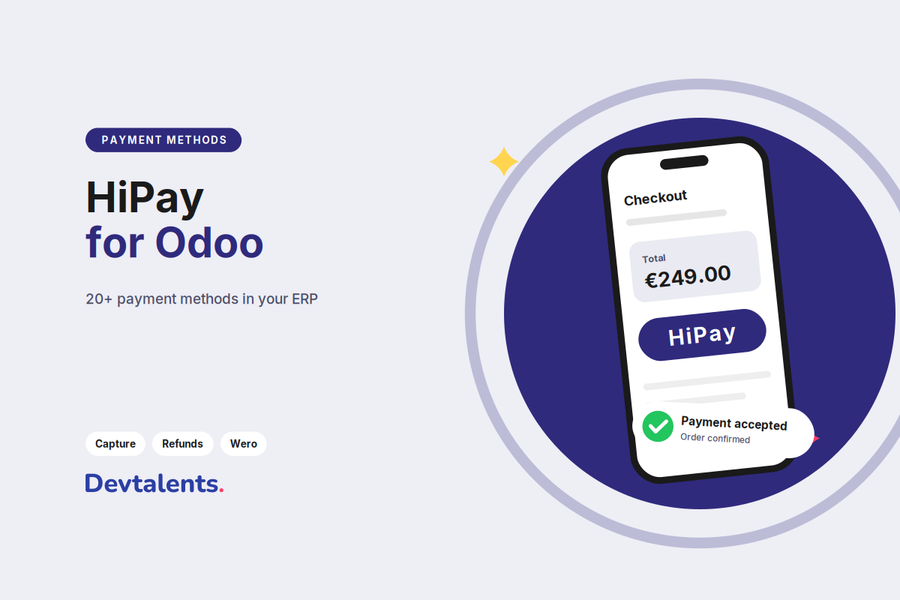
HiPay for Odoo: 20+ Payment Methods

HiPay Enterprise acquirer: CB, PayPal, iDEAL, Bancontact, SEPA, Klarna, Alma, Oney, Wero and more.

  • #Bancontact
  • #CB / Visa / Mastercard
  • #Klarna
  • #PayPal
  • #SEPA
  • Developed by DevTalents
  • Support by the team that wrote it
  • Installation on request
Billy, the DevTalents mascot, presenting the Odoo module

What the module does

  • More than 20 payment methods

    Cards, Alma and Oney instalments, Klarna, PayPal, Bancontact, iDEAL and Wero, SEPA Direct Debit, MB WAY, gift cards and more, each preconfigured with its HiPay code.

  • HiPay hosted payment page

    Show every method of your HiPay account, or only the ones you choose on each payment method.

  • Automatic or manual capture

    Collect at once, or authorize first and capture later from Odoo, within 7 days.

  • Partial capture, refunds and void

    Capture part of the amount, refund in full or in part, or cancel an authorization before capture.

  • 3-D Secure

    Automatic authentication when the card issuer supports it.

  • Verified notifications and returns

    SHA-1, SHA-256 or SHA-512 signature check on webhooks, and return parameters checked with your secret passphrase.

  • HiPay Sentinel and chargebacks

    Transactions challenged by fraud screening are set to pending; chargebacks and Visa RDR statuses are tracked.

  • Full status tracking in Odoo

    Authorized, done, pending, cancelled or error, kept up to date by server-to-server notifications on HiPay API v2.

In pictures

HiPay payments in Odoo, screen by screen

Real screenshots, taken in HiPay test mode on an Odoo store set in French, from the order to the refund.

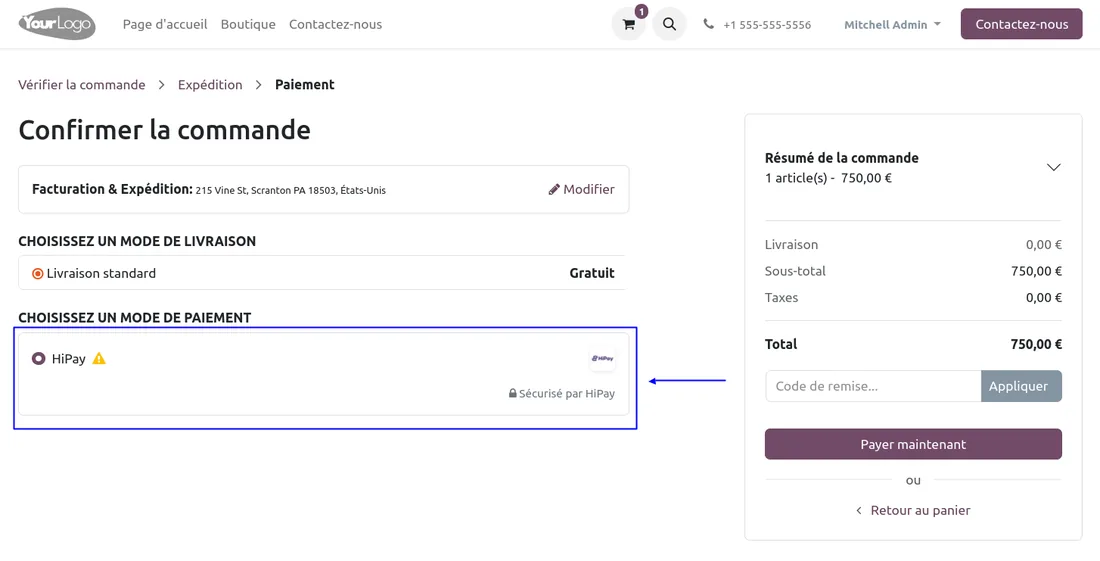
HiPay payment method on the Odoo eCommerce checkout page

HiPay offered at checkout

At the payment step, the customer picks HiPay and clicks Pay Now, then goes to the secure HiPay page.

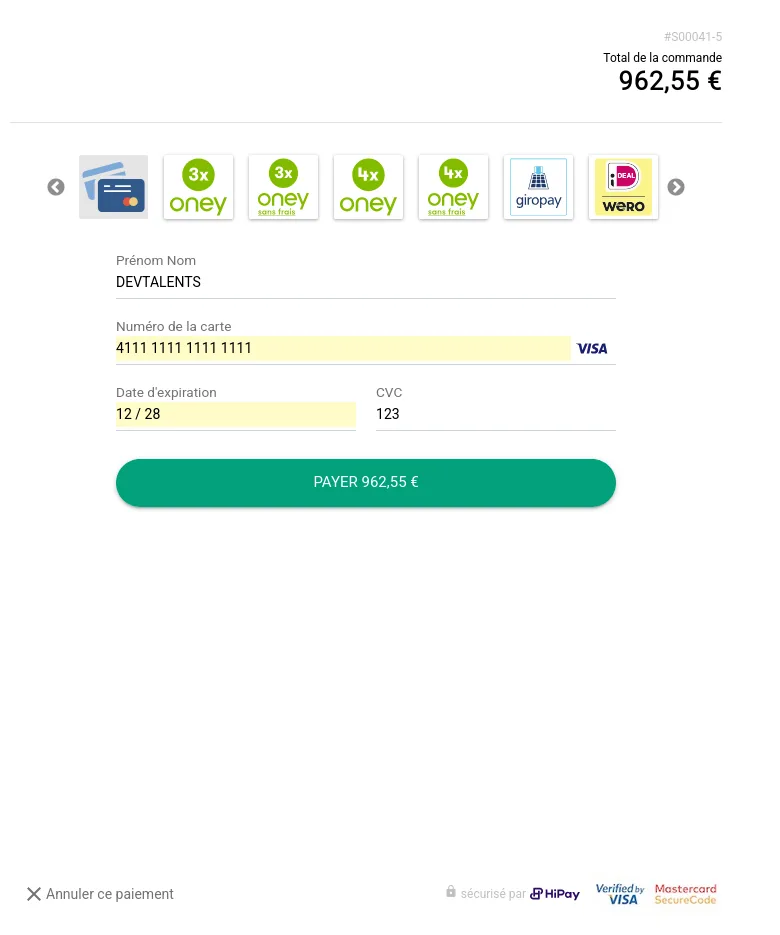
HiPay hosted payment page with card, Oney 3x 4x and iDEAL Wero, opened from Odoo

The HiPay payment page and its methods

The customer pays by card or picks another method open on your HiPay account: here Oney 3x or 4x installments, Giropay, or iDEAL and Wero.

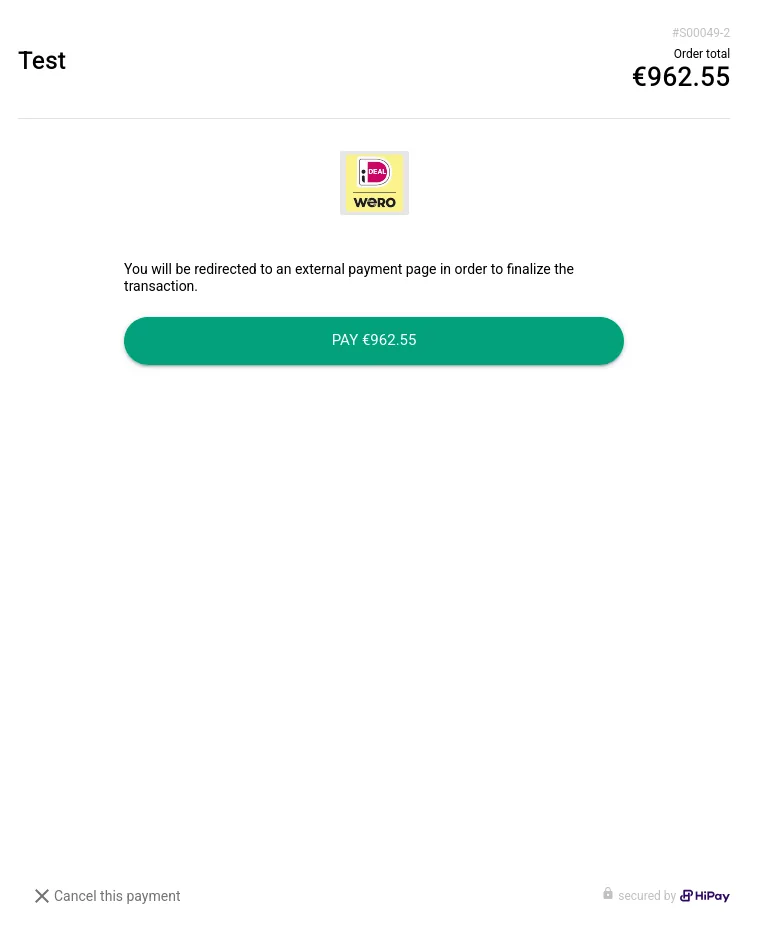
iDEAL Wero payment on the HiPay page, before the redirection to the customer's bank

iDEAL and Wero, through the customer's bank

For iDEAL, the HiPay page tells the customer they will finish the payment with their bank, then sends them there.

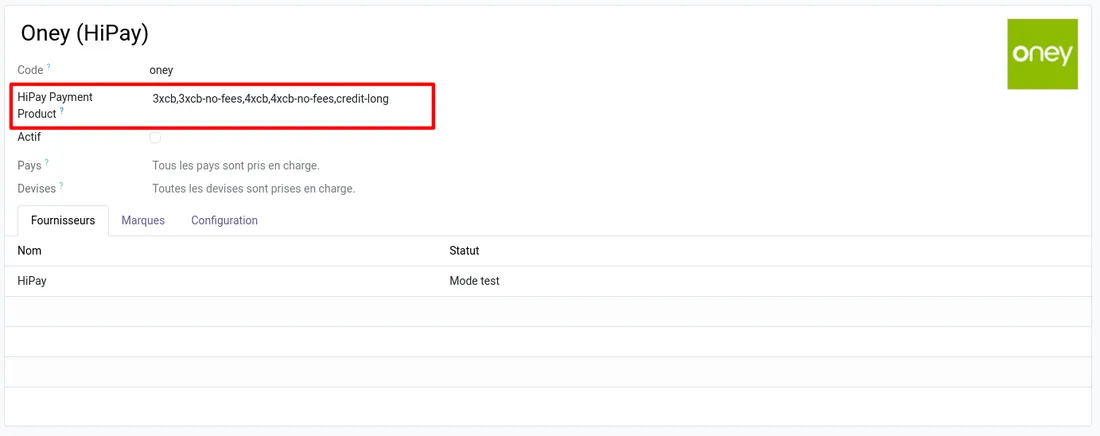
Oney by HiPay payment method in Odoo with its HiPay product codes

Payment methods already set up

Each payment method comes with its HiPay codes. For Oney: 3x and 4x, with or without fees, and long-term credit. Just activate it.

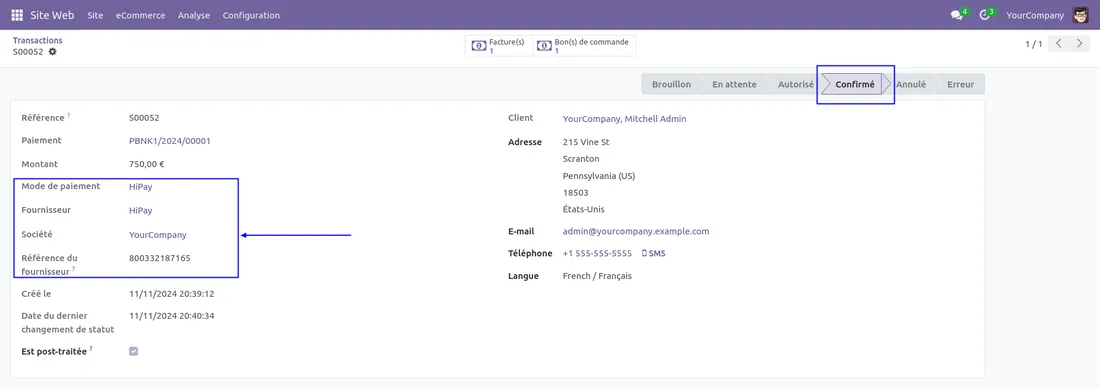
Confirmed HiPay transaction in Odoo with the HiPay reference and the linked order

The transaction confirmed in Odoo

When the customer comes back, the transaction is confirmed with its HiPay reference, and linked to the order and the invoice.

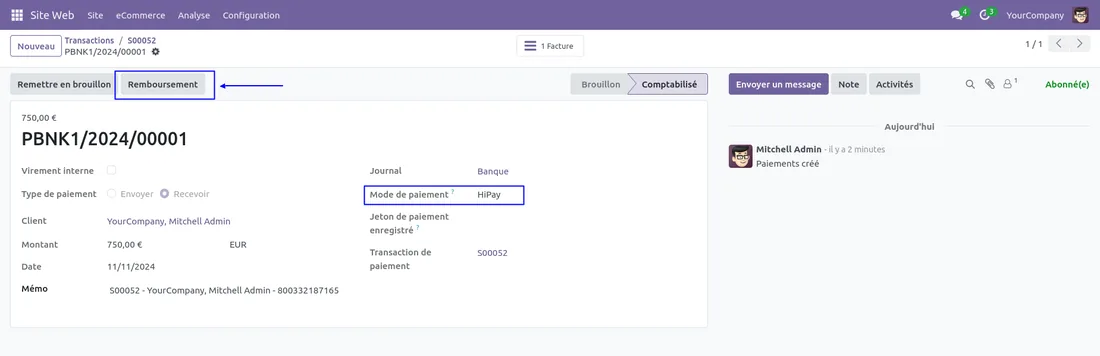
Refund button on a HiPay payment in Odoo Accounting

Refunds from the payment

From the accounting payment, the Refund button sends the request to HiPay, in full or in part, and Odoo creates the refund transaction.

Before you choose

One HiPay method or one button per payment method?

The HiPay Odoo module lets you choose how payment options are shown at checkout. Both ways can be used together.

Single HiPay methodOne button per payment method
What the customer sees in OdooOne choice: HiPayCard, PayPal, iDEAL, Oney… each with its logo
What the HiPay page showsEvery method open on your HiPay accountOnly the method the customer picked
SetupNone: it is the defaultActivate the methods you want, already set with their HiPay codes
When to pick itTo start quicklyTo highlight a method, such as buy now pay later

Do you have a direct contract with Oney or Alma? See our Oney 3x 4x and Alma modules.

Getting started

What to get from HiPay before installing the Odoo module

The module works with a HiPay Enterprise account. Everything is in the HiPay back office, under Integration > Security Settings.

  • A HiPay test account: to try the module in test mode before going live.
  • The login credentials: API Login and API Password, under Api credentials, to enter in Odoo.
  • The secret passphrase: recommended, it lets Odoo check that every payment notice really comes from HiPay.
  • The payment methods in your contract: card, PayPal, iDEAL, Oney, Klarna… HiPay only shows the ones open on your account.

Your Odoo must be reachable from the internet: that is how HiPay reports payments, even when the customer does not come back to the site. To see it on your own flows, ask for a demo.

With the module

An Odoo agency behind the module

Buying the module is the first step. We can take care of the rest with you.

Installation and setup

We install the module on your database, enter your credentials and test the whole flow before going live.

Support by its developers

Questions and fixes are handled by the team that wrote the module, not by a ticket relay.

Odoo support

Tailored adaptations

Specific rules for your business go in a separate module, so updates stay simple.

Odoo development
Setup

Put the module into service in four steps

  1. Buy it on the Odoo Store

    The licence is sold by Odoo; the module is then available for your database.

  2. Install it

    On Odoo.sh or on your own server, like any Odoo module.

  3. Configure it

    Enter the credentials of your provider and choose the options you need.

  4. Test, then go live

    Validate the whole flow in test mode, then switch to production.

HiPay Payment Provider for Odoo: 20+ Payment Methods, Capture, Refund & Wero Support

HiPay is a European leader in omnichannel payment solutions, trusted by thousands of merchants. Our Odoo module integrates HiPay's secure payment gateway with full refund support, multi-currency capabilities, and PCI DSS compliance: all within your Odoo ERP.

Read the article
Questions about HiPay Payment Provider

Where does the customer type the card with the HiPay module?

On the payment page hosted by HiPay. The card number never goes through your Odoo site. The customer then comes back to your store, and 3-D Secure is requested when the card's bank supports it.

Can I capture a HiPay payment later?

Yes. With manual capture, the payment is only authorized at order. You then capture all or part of the amount from Odoo, or void the authorization.

What happens when HiPay Sentinel holds a payment for review?

The payment stays pending in Odoo, with a message saying it is under fraud review. Odoo updates it as soon as HiPay gives its decision.

Does the HiPay module save customer cards?

No. Every payment goes through the HiPay page: the module offers no saved cards and no one-click payment.

Can I offer Oney or Klarna through HiPay?

Yes, if they are open on your HiPay contract. These methods are already set up in Odoo: just activate them so they show at checkout.

Does the module work on Odoo Online?

No: Odoo Online does not accept third-party modules. It installs on Odoo.sh or on your own Odoo server.

Can you install and configure it for us?

Yes. We install the module, configure it with your credentials, test it in test mode and switch to production with you.

Ask for an installation

Who supports the module?

The DevTalents team that developed it: fixes, compatibility with new Odoo versions and configuration questions.

Can the module be adapted to our needs?

Yes. We add the rules specific to your business in a separate module, so that updates stay simple.

Odoo development

Same category

Similar Odoo modules

Alma Payment Provider - Odoo module

Payment Providers

Alma Payment Provider

Alma official partner: let your customers pay in 1x–12x installments. Eligibility widget, category exclusion and Alma-approved integration.

Alma POS - Odoo module

Payment Providers

Alma POS

Alma in the Odoo Point of Sale: your customers pay in store now or in 2 to 12 instalments, on their phone. QR code on the cashier and customer display, SMS link or payment on the store's screen, order validated as soon as the customer has paid, refunds from the POS.

All our Odoo modules

A module to adapt or to create?

Tell us what you need: we reply within 48 hours.

Discuss your project
Billy, the DevTalents mascot, answering a message on his phone