
Wero is reaching your customers. Here is how to accept it in Odoo with Axepta BNP Paribas
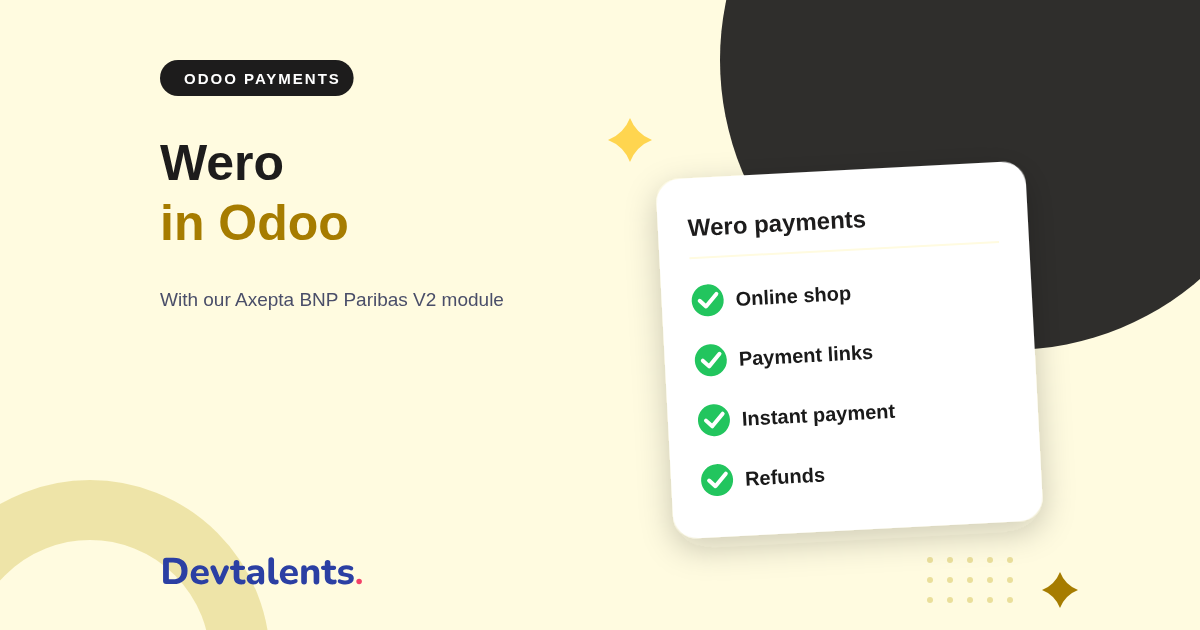
Wero is the European account-to-account payment method: the customer approves in their app, and the money goes straight from their account to yours. BGL BNP Paribas now offers it to its business clients, including on an e-commerce site. We are taking this opportunity to tell you about our Axepta BNP Paribas V2 module, already published on Odoo Apps: it adds Wero to the payment methods of your Odoo, and every Wero payment is recorded against the right order or invoice.
This article explains what Wero means for a business, the three ways to collect with it, then in detail the one that concerns us: Wero payments online, from your Odoo shop or from a payment link sent with an invoice.
In this article
Wero in two minutes
Wero is a payment solution backed by the European Payments Initiative, a group of European banks that includes BNP Paribas. The principle: pay from bank account to bank account, without a card, by approving the transaction in an app on your phone.
In Luxembourg, Wero takes over from Payconiq. The BGL BNP Paribas Wero page for businesses (in French) says so: Wero replaces Payconiq, with more users across Europe, and Payconiq QR codes remain valid until the end of 2026. For a Luxembourg merchant, the question is therefore not whether customers will use Wero, but when.
On the collection side, the bank highlights three points: customers all over Europe, payments completed in seconds, and a secure solution. It states that the amount is credited immediately or at the latest on the next working day, depending on the terms of your acceptance contract.
Three ways to collect with Wero
Wero needs no payment terminal. Depending on your business, you collect in one of three ways:
The payment request
You enter the amount in your Wero app and send it to the customer's phone number; the customer approves. Suited to freelancers and independent professionals.
The QR code
The customer scans your QR code on site and approves in their app. Suited to the counter, to associations and to companies that collect face to face.
Online payment
Wero is listed among the payment methods of your site. The bank refers to a payment module to install. For an Odoo site, that is the subject of this article.
The first two are arranged with your bank and do not go through Odoo. The third only makes sense if the payment comes back into your management software: otherwise, someone has to copy each payment by hand.
Wero in Odoo with Axepta BNP Paribas
Axepta is the online payment platform of BNP Paribas. Wero is offered there alongside cards, Apple Pay, Google Pay, PayPal or Bancontact. Our Axepta BNP Paribas V2 module for Odoo connects your Axepta contract to Odoo and makes Wero a payment method in its own right:
- a dedicated Wero button, with its logo, in the list of payment methods shown to the customer;
- one contract and one module for Wero and for your other payment methods: no second provider to plug in;
- the payment recorded in Odoo as soon as the customer approves, against the order or invoice concerned, with its accounting entry;
- the "Pay with Axepta" entry, if you prefer a single button: the Axepta page then shows Wero with every method enabled on your contract.
Wero is not only for the online shop. The module relies on the standard Odoo payment framework: the Wero button also appears on payment links sent from a quotation or an invoice, and in the customer portal. For a service company, that is the most direct use: you send the invoice, the customer clicks and pays with Wero, the invoice becomes paid.
What your customer sees
- At checkout, they choose Wero among the methods offered by your Odoo site.
- They are sent to the Axepta secure payment page, with your logo if you have set it.
- They approve the payment in their Wero app or in their banking app. No card number to type.
- They come back to your site, where the order is confirmed.
If the customer closes the browser right after approving, the order is not lost: Axepta notifies Odoo on its side, and Odoo checks the payment with Axepta before confirming.
What your team does from Odoo
- Track the payment: the status and the reference of the transaction are shown on the order, without opening the Axepta merchant portal.
- Refund a Wero payment in full or in part, from the payment in Odoo. The refund stays linked to the original payment.
- Reconcile: the payment is already recorded in Odoo when the transfer shows up on your bank statement. All that is left is to match it.
Three safeguards run in the background. The status of a payment is never read from the customer's browser: Odoo asks Axepta, then compares the amount and the currency with those of the order. The notification sent by Axepta is checked by its signature. And every thirty minutes, Odoo checks the payments still pending, so that no paid order stays stuck.
What to know before enabling Wero
Wero is not a card, and some habits do not apply to it. Better to know beforehand:
| Point | With Wero in the module |
|---|---|
| Capture | Immediate. There is no authorisation followed by a capture at shipping, as with a card. |
| Capture at shipping for cards | Odoo sets this mode for the whole payment provider. If you turn it on, Wero has to be disabled. You have to choose. |
| Refund | Full or partial, from Odoo. |
| Currency | Euro only. |
| Saved card, subscription | No: each Wero payment is approved by the customer. |
| Activation | Wero has to be opened on your Axepta contract. In Odoo, it ships disabled: you enable it once the contract is ready. |
Two things to check with your account manager at the bank. First, that your online acquiring contract runs on the Axepta BNP Paribas platform, version 2, the one the module uses. Second, that Wero is enabled there for your merchant ID. On the Odoo side, the module installs on Odoo.sh or on your own server, on version 18, 19 or 20; Odoo Online does not accept third-party modules.
Enabling Wero in Odoo, step by step
- ask your bank to open Wero on your Axepta contract;
- install the Axepta BNP Paribas V2 module from the Apps menu;
- in Odoo, open the Axepta payment provider, enter your merchant ID, your API key and your HMAC key, then run the connection test;
- in the list of payment methods of the provider, enable Wero;
- make a trial payment, then switch to production.
The background to this offer, and what BGL BNP Paribas provides to companies that use Odoo, is covered in our article on the partnership between BGL BNP Paribas and Odoo. For the details of every payment method in the module, see our article on Axepta V2.
Wero and Odoo: frequently asked questions
Do I need a payment terminal to accept Wero?
No. On site, a smartphone with the Wero app or a QR code is enough. Online, a payment module connected to your contract does the job.
Can an Odoo invoice be paid with Wero?
Yes. The customer opens the payment link of the invoice or their customer portal, chooses Wero, approves in their app, and the invoice is marked as paid in Odoo.
Do my Payconiq QR codes still work?
According to BGL BNP Paribas, they remain valid until the end of 2026. Wero then takes over. QR codes do not concern online payment in Odoo.
Can a Wero payment be refunded?
Yes, in full or in part, directly from the payment in Odoo.
Can I offer Wero and cards at the same time?
Yes, with the same module and the same contract. One limit: card capture at shipping and Wero cannot both be active on the same payment provider.
My bank is not BNP Paribas: can I accept Wero in Odoo?
It depends on your bank's payment solution. Our comparison Monetico, CAWL or Axepta covers it, and we can point you in the right direction.
Can you install it for us?
Yes. We install the module, connect it to your Axepta contract, enable Wero and run the trials with you before going live.
Want to accept Wero on your Odoo?
Tell us how your customers pay today: we tell you what to install, or we do it for you. Contact us, or see the module page Axepta BNP Paribas V2.